Seamless carousels · Film frames
A photo dump
worth keeping.
A summer, or a whole year, laid out on one canvas and sliced into a carousel that flows as a single picture. Film frames, real layouts, and none of it leaves your phone.
4.8on the App Store · Free to download
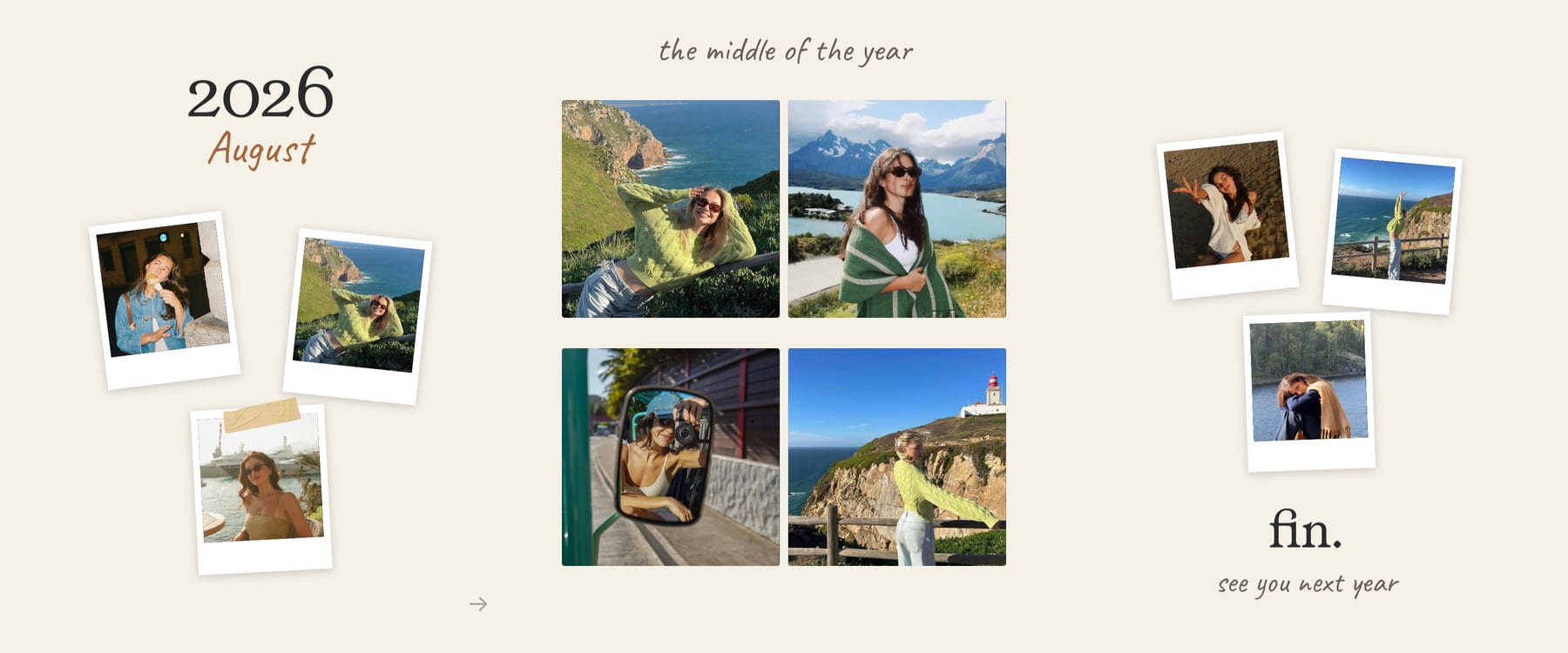 1/32/33/3
The seam
Most apps cut your photos into slides. This one never cuts them apart.
You work on one wide canvas. A frame can sit half on slide two and half on slide three, a headline can run the whole way across, and the split only happens at the very end. That is the difference between a carousel that lines up and a carousel that is one picture.
One canvas
Your design is a single space as wide as it needs to be, not a stack of separate posts you try to line up by eye.
Step 1 of 3Layers cross the line
Photos, text and stickers sit wherever they look right. Nothing snaps to a slide boundary, because there are no boundaries while you work.
Step 2 of 3Sliced last
At export the canvas is cut into equal slides, left to right, in order. Post them as a carousel and the seams disappear.
Step 3 of 3Up to 20 slides, which is Instagram's own limit. Square, portrait, story, wide, or a ratio you type in yourself.
The photo dump
You came back with two hundred photos.
Instagram wants ten of them, maybe twenty, and every one arrives looking like it happened to a different person on a different day. The grid flattens the trip.
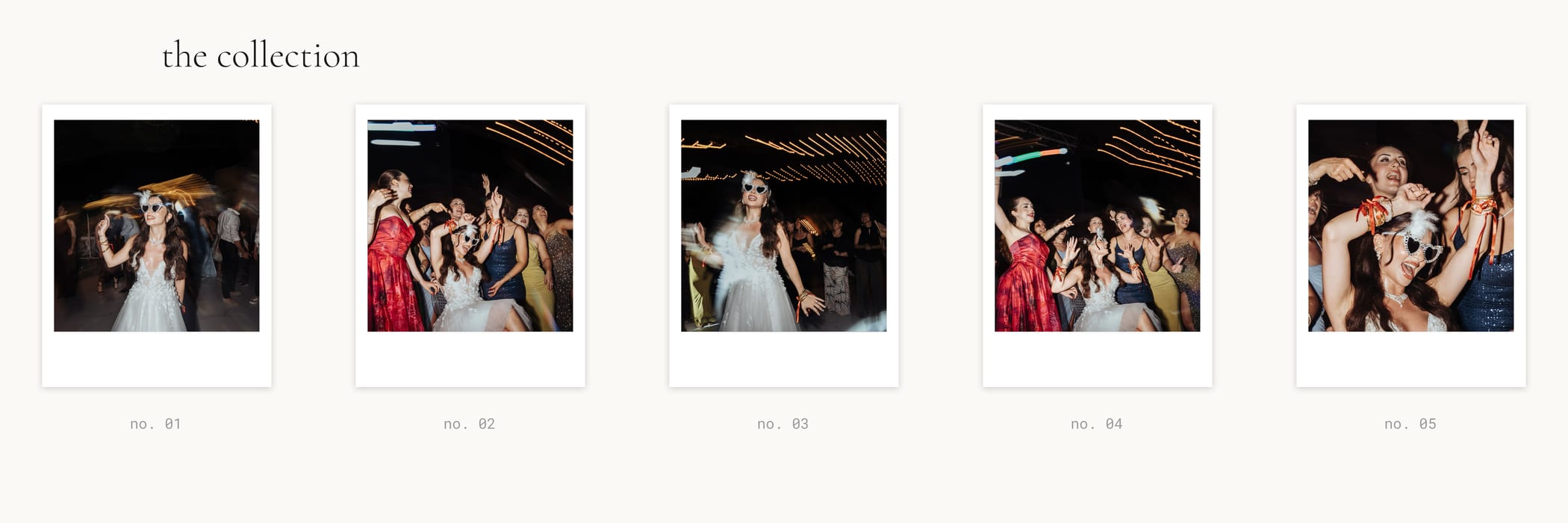
Frames gives you somewhere to put the whole set. Lay them out the way the days actually went, let the good ones run big, keep the blurry one that is funny, and give the whole thing a shape someone can swipe through in twenty seconds.
Nobody has to like it for it to have been worth making.
The frames
Not stickers of frames.
Frames.
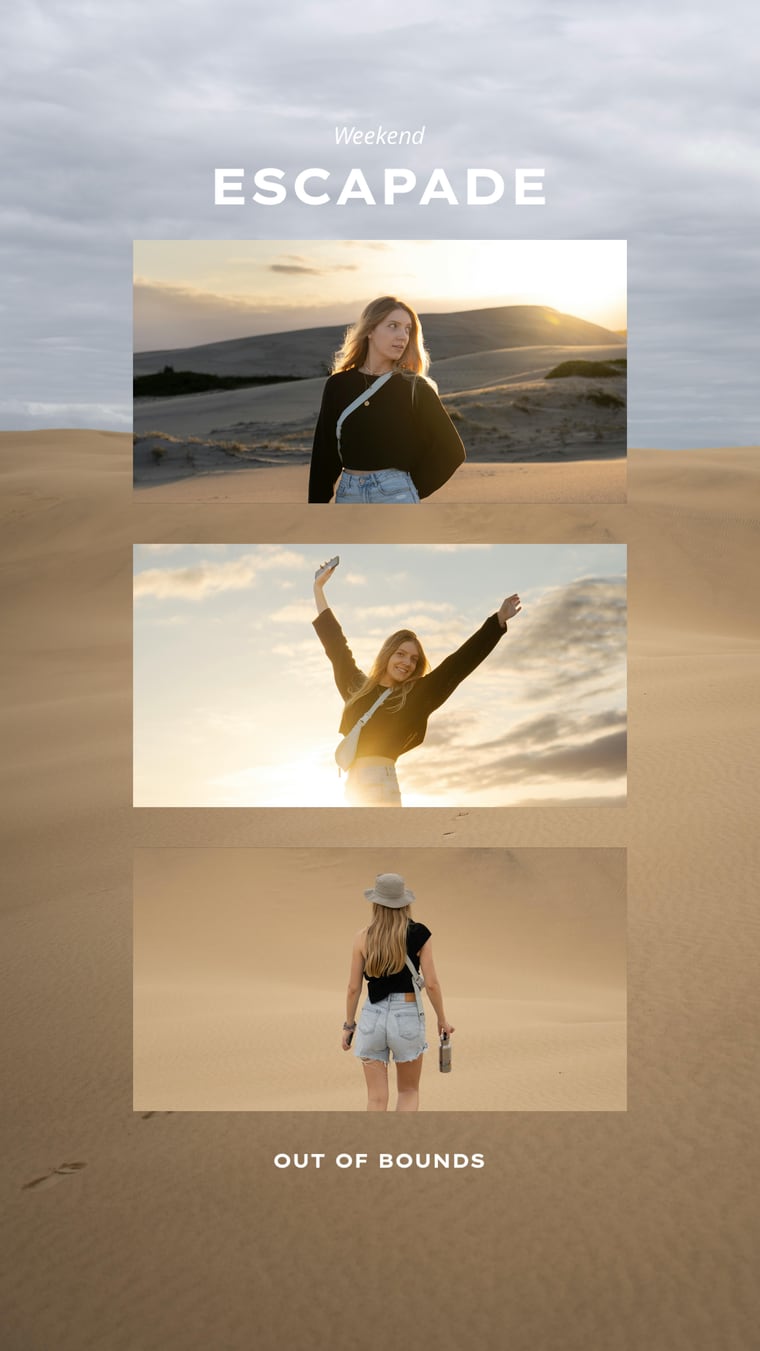
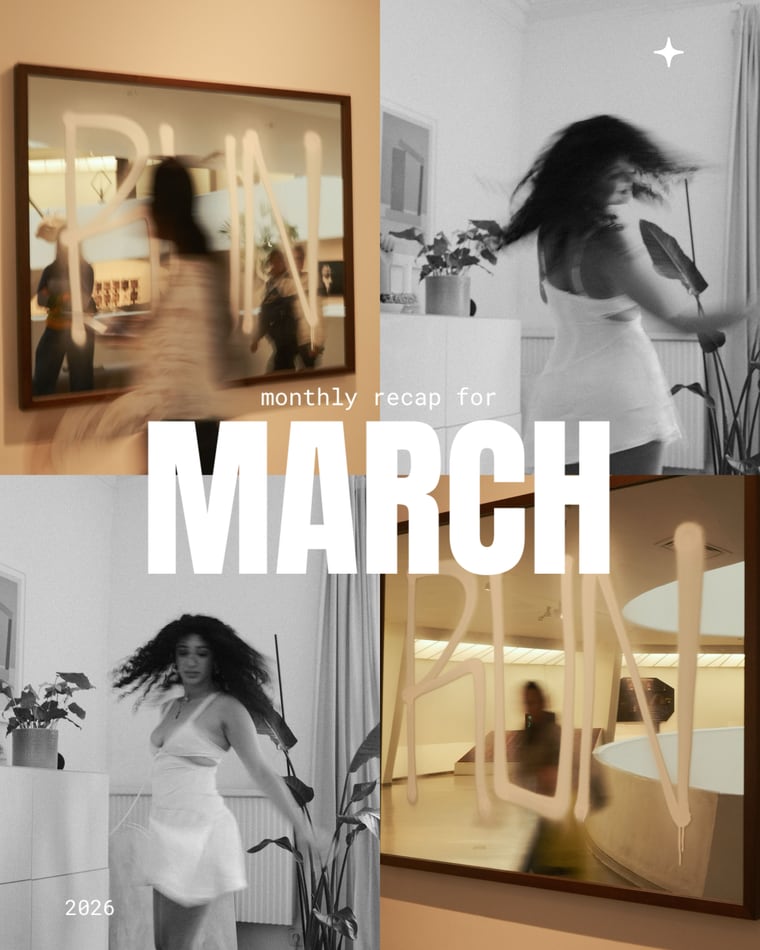
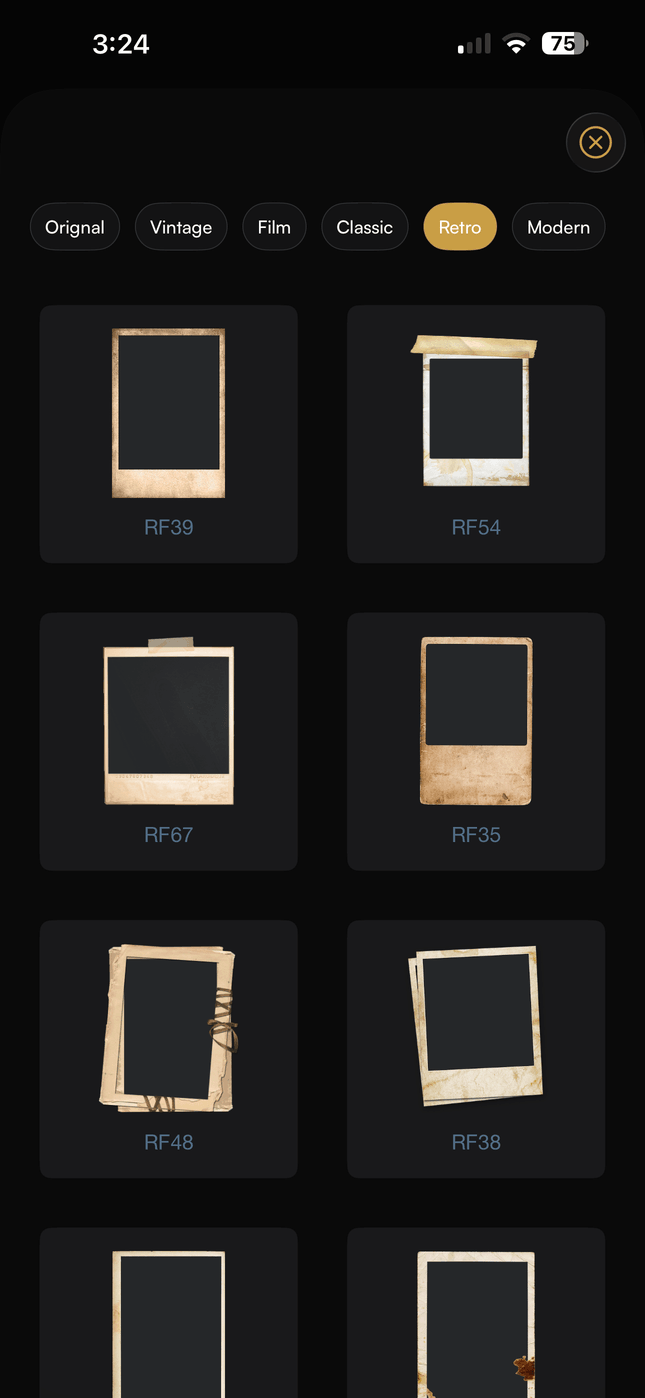
Each one is built, not pasted over the top. The photo sits inside it, the border has real thickness, and the whole thing behaves like an object you can pick up, resize and tilt. Six eras of them.
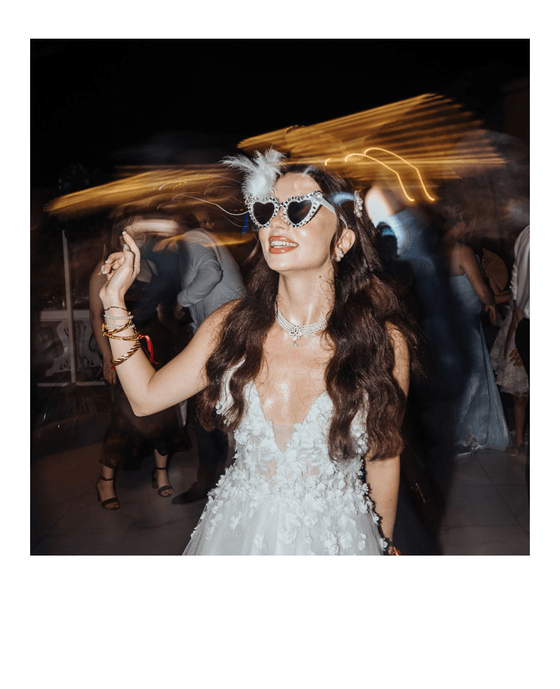
Original
The one it started as
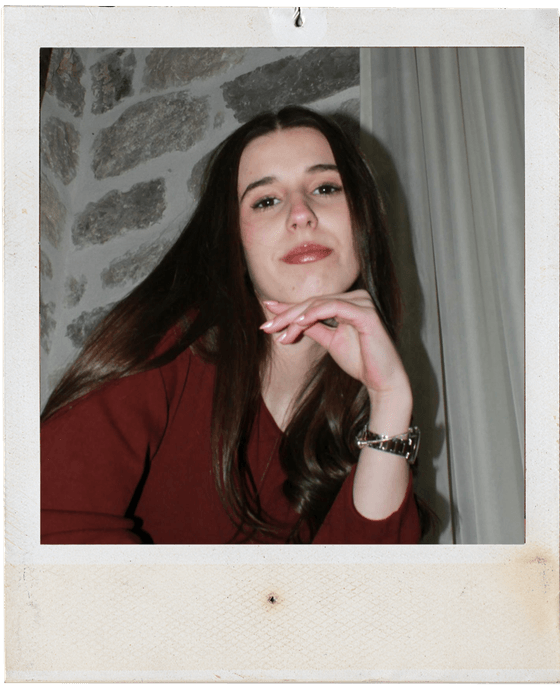
Vintage
Softened, foxed, handled
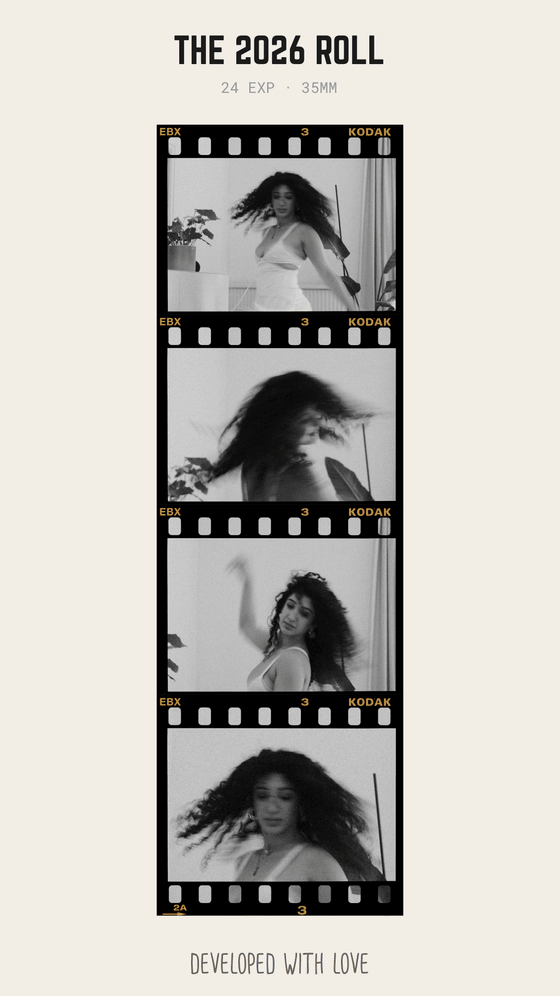
Film
Sprockets, frame numbers, stock

Classic
A clean white border
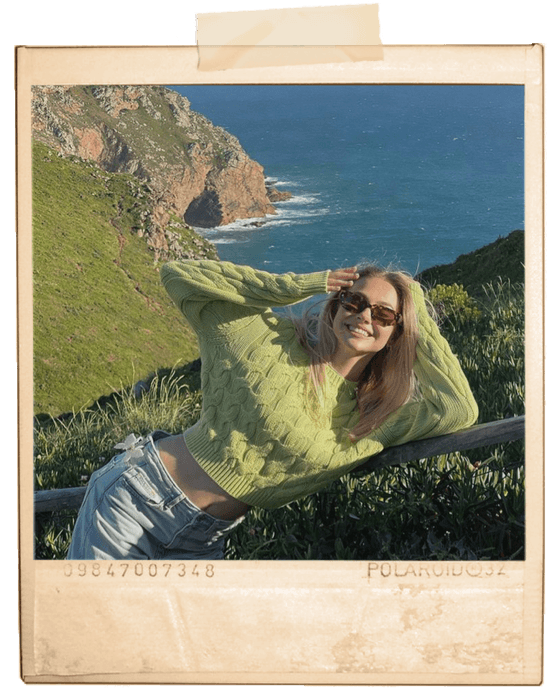
Retro
Pulled out of a shoebox
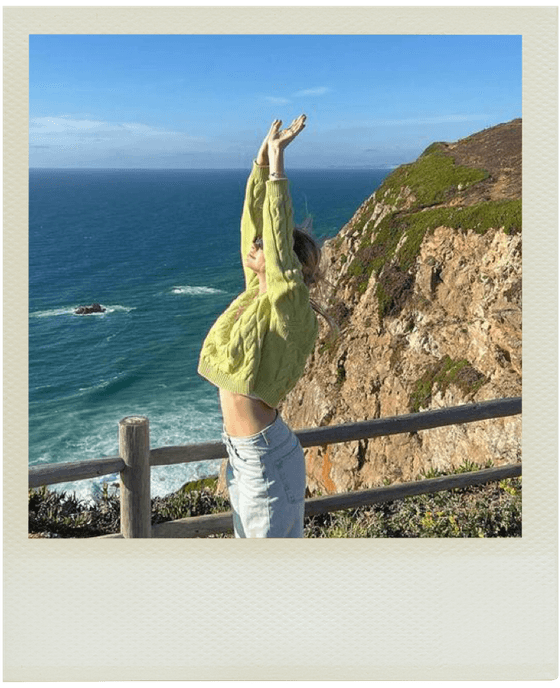
Modern
Texture, edges, a little noise
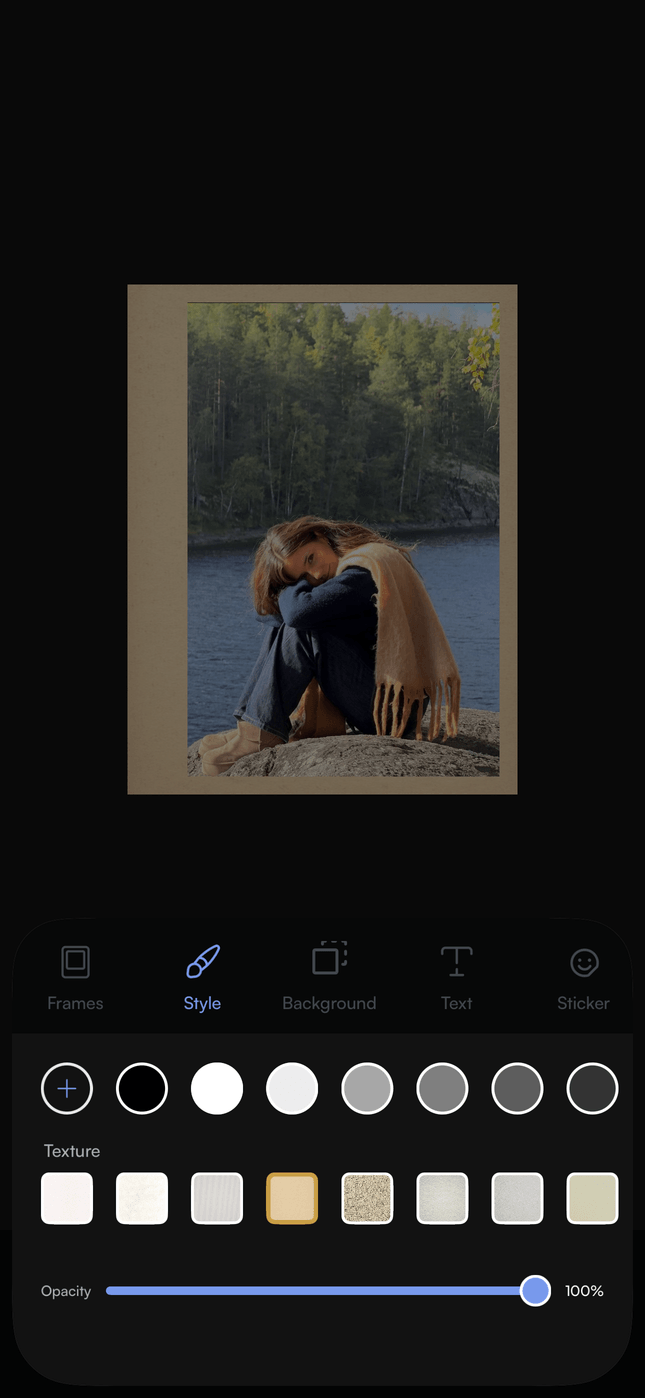
Drop a photo in, then move the frame around the canvas like anything else. Nothing is baked in until you export.
Finishing
Nobody ever finished anything by scrolling templates.
Posts do not die because an app ran out of templates. They die at one specific moment, somewhere in the middle, when the thing you need is not there. These are those moments.
- I need one more slide.
- Go to twenty, which is Instagram's own ceiling. The canvas stretches, the layout does not start again.
- There is a bin in the shot.
- Lift the subject out in one tap. It happens on your phone, so nothing is uploaded anywhere to be processed.
- This does not look like me.
- Save your colours, your fonts and your logo once. Any template can be restyled to match them.
- I want it to look handmade.
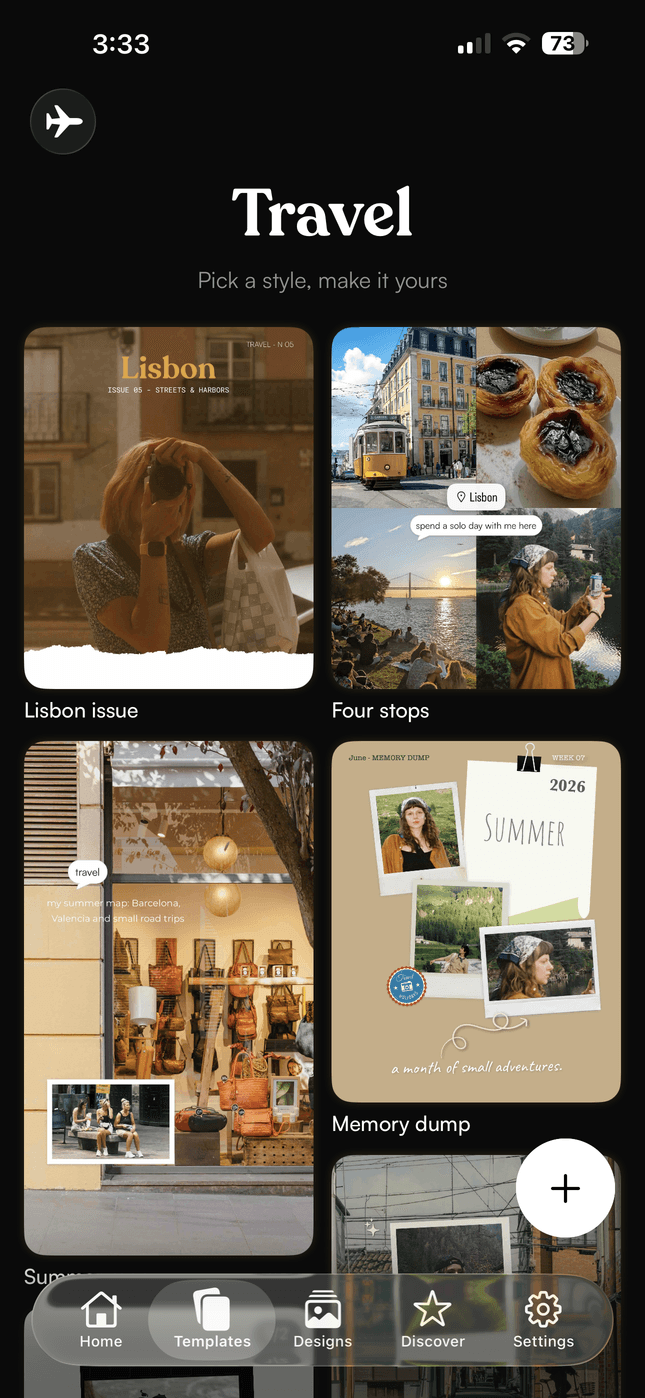
- Tape, torn paper, journal scraps, tickets, old stamps. There are 458 of them and you will use about nine.
- The collage is nearly right.
- Drag one cell and the others move to make room. Swap a photo without rebuilding the arrangement.
- The words should carry this one.
- Seventy-one faces, bent along a curve if you want it, with spacing, borders and shadows that behave.
A bigger library is the easiest thing in the world to build, and the easiest thing to put on a billboard.
Getting somebody all the way to the end of something they are proud of is the hard part. That is the part this is tuned for. Everything here was kept because it earns its place in a design, not because it made a number go up.
On your phone, not on a server
Cut a subject out without uploading anything.
Tap a photo, tap remove background, and the subject lifts out. It runs on Apple's own Vision framework, on your device, so your photos are never sent anywhere to be processed.
Most apps that do this send your picture to a server. That is the part nobody mentions.
Needs iOS 17 or later. Included with Pro.
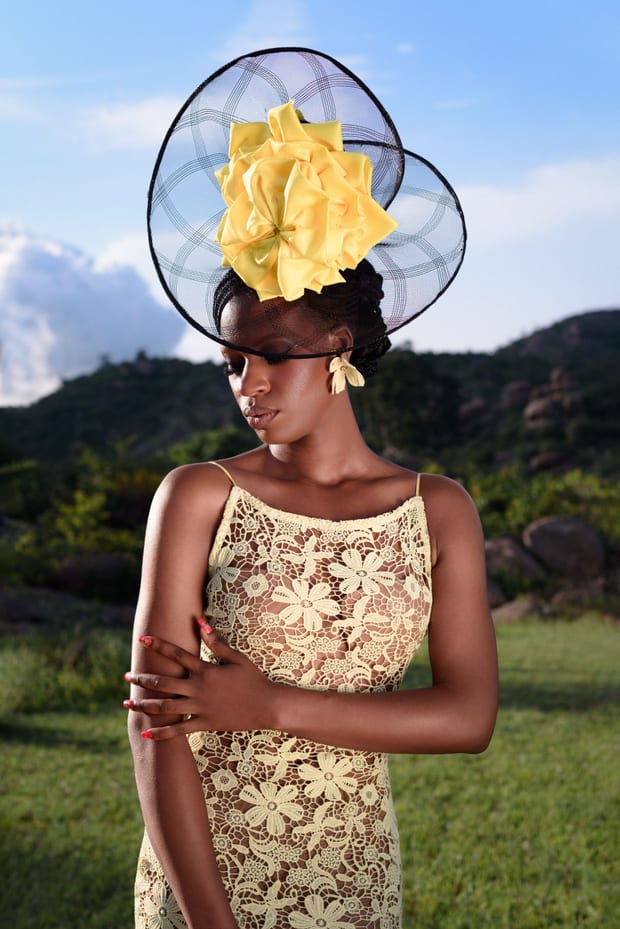
Two photographs

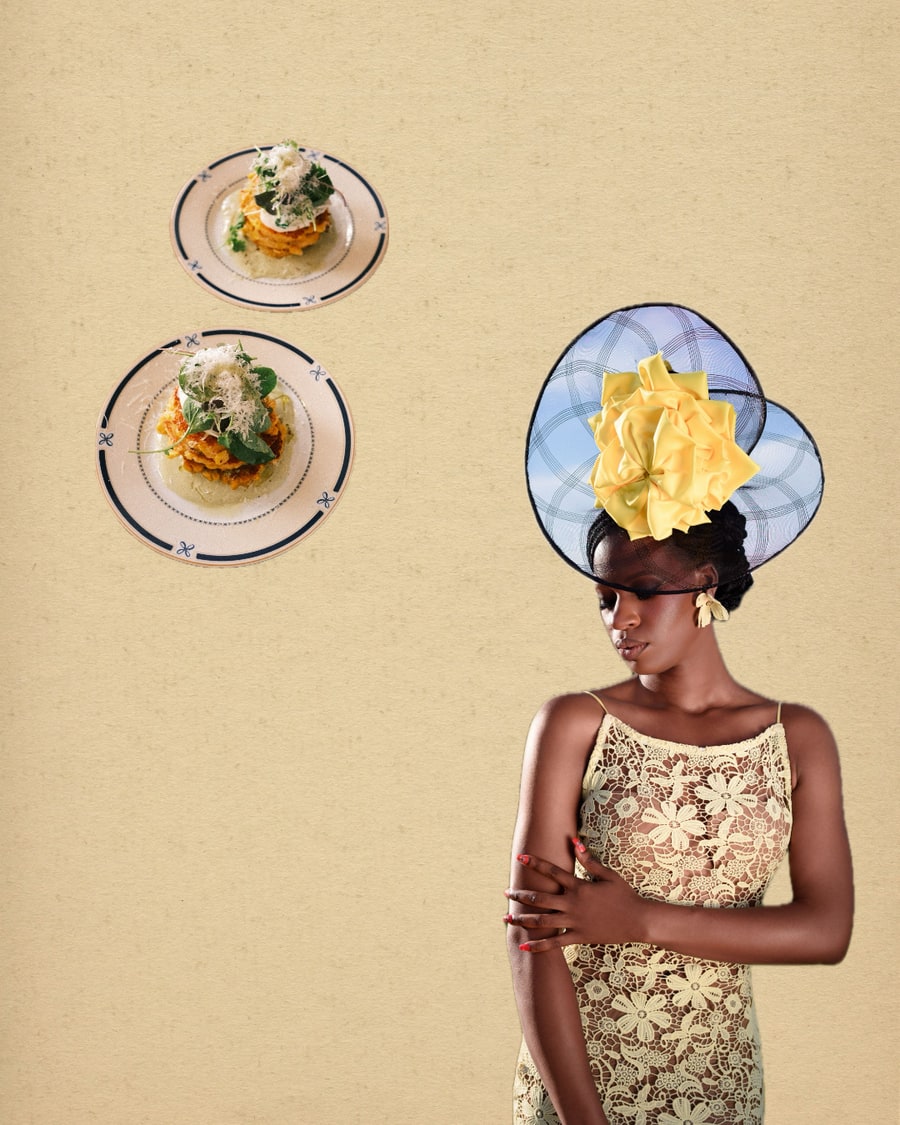
What they became
Free or Pro
Here is exactly what you get without paying.
Free is a real version of the app, not a demo. It is also genuinely limited, and it seems better to say where than to let you find out after you have built something.
| Feature | Free | Pro |
|---|---|---|
| Carousel slides | Up to 3 | Up to 20 |
| Watermark | One clean export, then watermarked | Never |
| Export quality | Standard | High and Max |
| File types | PNG, JPG | PNG, JPG, PDF |
| Multi-slide export | Separate photos | Also stitched, and a panning video |
| Frames | 18 of 77 | All 77 |
| Templates | 39 of 179 | All 179 |
| Stickers | 229 of 458 | All 458 |
| Grid layouts | 6 of 59 | All 59 |
| Background removal | Not included | Included, iOS 17+ |
| Project folders | One | Unlimited |
| Ads | None for your first week, then a few | None, ever |
Pro is a monthly or yearly subscription. Prices show in your own currency on the paywall inside the app, and you can cancel from your Apple account at any time. There is no weekly plan.
Questions
The ones people actually ask.
- How many photos can an Instagram carousel have?
- Twenty. Instagram raised the limit from ten, so a carousel can now run to twenty slides. Frames builds up to twenty on Pro, and up to three on the free version.
- How do I make a seamless Instagram carousel without Canva?
- You need something that treats the whole carousel as one canvas and slices it at the end, rather than asking you to line up separate posts. Frames does that on the phone, so there is no desktop step and no exporting a wide image to cut up somewhere else.
- Why do my carousel photos come out blurry?
- Usually one of three things: the image was exported below the size Instagram expects, it was saved as a heavily compressed JPG, or Instagram recompressed it on upload. Export at the largest size your app offers, keep each slide at 1080 pixels wide or more, and upload over wifi rather than a weak signal.
- What size should a seamless carousel be?
- Match each slide to a standard post ratio and let the canvas be as wide as the number of slides. Square is 1:1, portrait is 4:5, and portrait usually wins because it takes up more of the screen. Frames also does story, wide, and any ratio you type in.
- Do my photos leave my phone?
- No. Editing and background removal both run on your device, and background removal uses Apple's own Vision framework rather than a server. Your designs are saved on the phone too, which also means deleting the app deletes them.
- Is Frames free?
- It is free to download and free to use, with limits. The free version builds three-slide carousels and gives you one export without a watermark. Pro lifts the slide count to twenty, removes the watermark for good, and unlocks the full frame, template and sticker libraries. There is a full breakdown further up this page.
- Can I edit a carousel after I have made it?
- Yes. Designs are saved as projects you can reopen and keep working on, with undo and redo, and a layer list for anything you need to move behind something else.
- What do I need to run it?
- An iPhone on iOS 16 or later. Background removal needs iOS 17 or later.
Go and get the good ones out of there.
They have been sitting in your camera roll since the summer.
4.8on the App Store · Free to download · iPhone